This guide has two parts: CommonMark (core) syntax and GitHub Flavored Markdown (GFM). Skim to the section you need if you’re refreshing your memory.
Preface
I’ve been using Markdown for years—docs, notes, and blog posts—but never sat down to organize my understanding. While reviewing my knowledge base, I took the chance to summarize the syntax and a few real-world tips. Hope it saves you time.
What is Markdown, and why use it?
Markdown (file extensions .md / .markdown) was introduced in 2004 by John Gruber and Aaron Swartz. Its core idea is simple: write readable plain text that can be converted directly into structured HTML/XHTML.
Because Markdown is lightweight and easy to write, you focus on content instead of fonts and layout. Many platforms adopt it for docs and posts—GitHub, Reddit, Discord, Stack Exchange, OpenStreetMap, SourceForge, and more. The semantic structure also plays nicely with LLMs. (This article was drafted in Obsidian.)
Standardization at a glance
This section covers the CommonMark baseline that most editors support.
There are several Markdown variants:
- CommonMark: a standardized spec and reference implementation that fixes ambiguities in the original syntax.
- GitHub Flavored Markdown (GFM): GitHub’s flavor that adds tables, task lists, autolinks, and more.
- Markdown Extra / MultiMarkdown: community extensions supporting tables, footnotes, definition lists, math, etc.
CommonMark: the core syntax
Paragraphs vs. line breaks
They look similar when writing but render differently.
Paragraphs
A paragraph is one or more lines of text. Separate paragraphs with a blank line:
This is the first paragraph

This is the second paragraph
 HTML structure
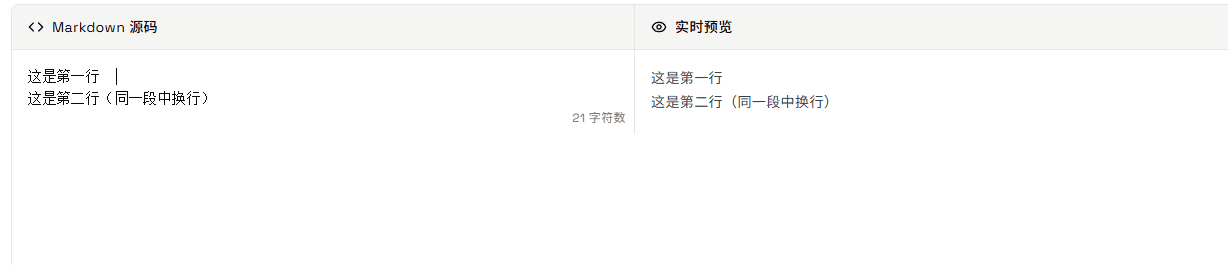
Line breaks To break a line within the same paragraph, add two spaces at the end of the line, then press Enter. This renders a <br>:
First line··
Second line (same paragraph)
 HTML structure
Headings
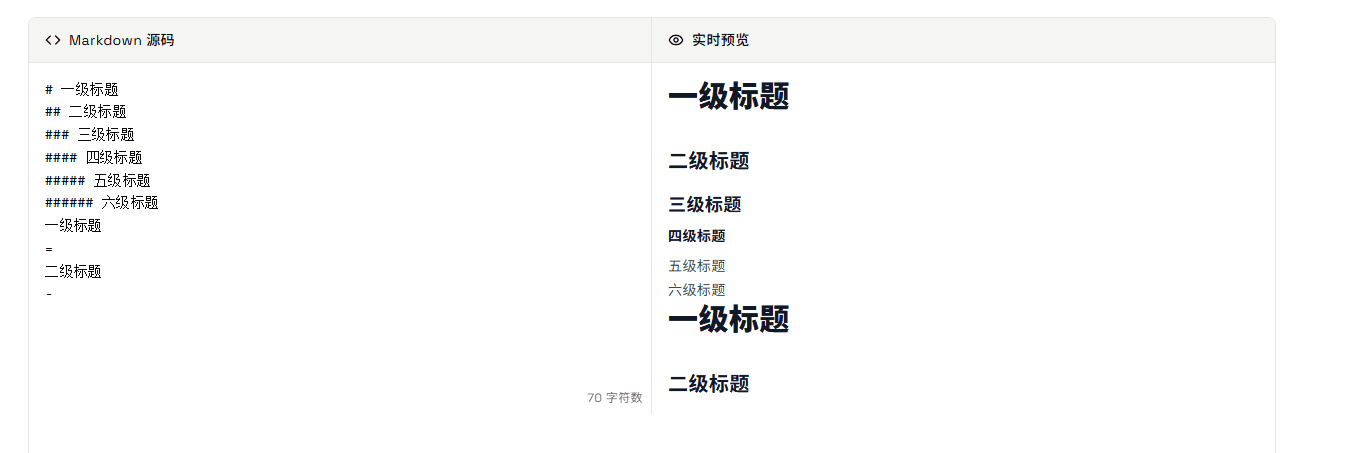
Use # for headings (<h1>–<h6>):
# H1
## H2
### H3
#### H4
##### H5
###### H6
Setext style (= for H1, - for H2) also works, but can be confusing in blogs:
Heading level 1
=

Heading level 2
-
 HTML structure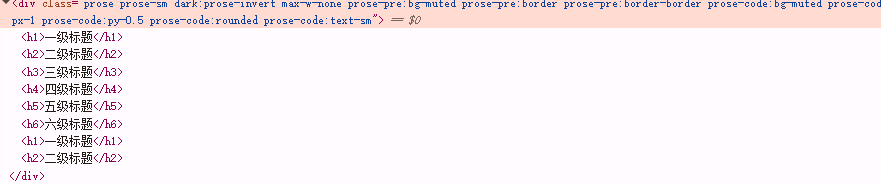
For blog posts, stick to H2–H4 for clarity and better SEO scanning.
Emphasis
Use * or _:
*italic* or _italic_
**bold** or __bold__
***bold italic*** or ___bold italic___
 HTML structure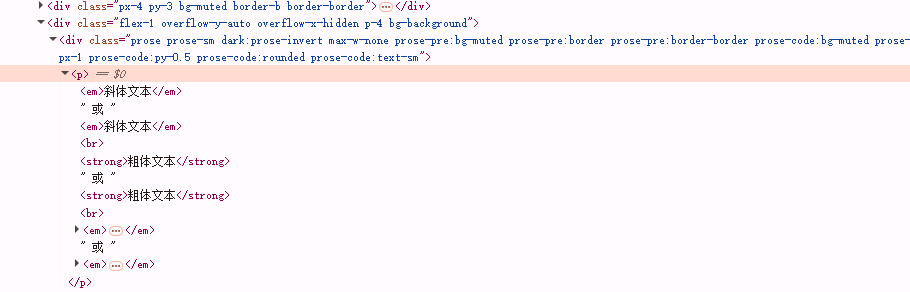
Backslash escapes
Escape special characters if you don’t want them parsed:
This is a star \*, a hash \#, and an underscore \_
Blockquotes
Use >; nest with multiple >:
> A quote
>> A nested quote

Lists
Unordered lists: -, *, or +:
- Item 1
- Item 2
  - Subitem 2.1
  - Subitem 2.2
* Item 3
+ Item 4
 HTML structure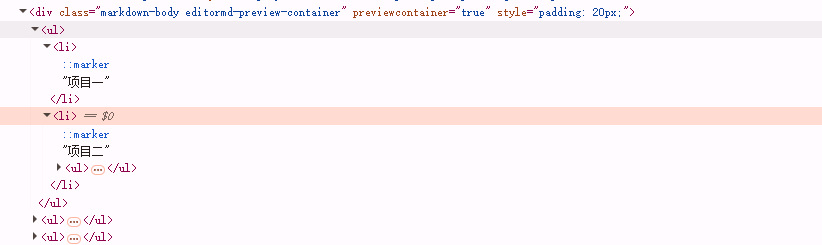
Ordered lists: 1., 2., …
1. First
2. Second
   1. Second-A
   2. Second-B
3. Third
 HTML structure
Links
Inline links:
[Visit Google](https://www.google.com "Google Homepage")
Markdown renders this as: Visit Google
Reference links (easier to manage at scale):
See [Google][g], [Yahoo][y], and [Bing][b].
[g]: https://www.google.com "Google"
[y]: https://search.yahoo.com "Yahoo Search"
[b]: https://www.bing.com "Bing"
Renders as: See Google, Yahoo, and Bing.
Images
Same idea as links; always include meaningful alt text (accessibility + image SEO):


Horizontal rules
Any of the following:
---
***
___
Code
Inline code:
Use `console.log("Hello, World!")` for a quick check.
Fenced code blocks (include a language for highlighting):
```javascript
console.log("Hello Markdown!");
```
Highlighters vary across editors; language hints help. In MDX, if backticks conflict, wrap with an extra outer fence.
Inline HTML
Many renderers accept small bits of HTML like <br>, <kbd>, <sub>/<sup>. In MDX you can drop in components directly—just watch your HTML/JSX syntax and closing tags.
GFM: useful extensions
Most modern editors—Obsidian, Typora, VS Code—support GFM or provide compatible rendering.
Task lists
- [x] Done
- [ ] Todo
Result:
- Done
- Todo
Tables
| Field    | Description |
|----------|-------------|
| Header   | Title       |
| Paragraph| Text block  |
Alignment:
| Left  | Center | Right |
|:----- |:-----: | ----:|
| A     |   B    |     C|
Strikethrough
~~This text is removed~~
Result: This text is removed
Autolinks
Just paste a URL:
https://github.com
Emoji
:smile: :rocket: :memo:
Result: 😄 🚀 📝
Syntax highlighting (fenced blocks)
```python
def hello():
    print("Hello, Markdown!")
```

GFM supports many languages out of the box—JavaScript, Python, HTML, and more.
Wrap-up
That’s it for the essentials. If this helped, consider bookmarking it for quick refreshers before you publish.
Useful references
Recommended Reading
- How to Add a Giscus Comment Section to Your Next.js Blog (Complete Guide)
I’ve always wanted to add a comment section to my blog but didn’t want a complicated system. Then I discovered Giscus — a lightweight, GitHub-powered comment solution that’s easy to integrate and looks great. Here’s a complete step-by-step guide on how I added Giscus to my Next.js blog.
- Welcome to Xiaoyan's Blog
Happy to see you here!